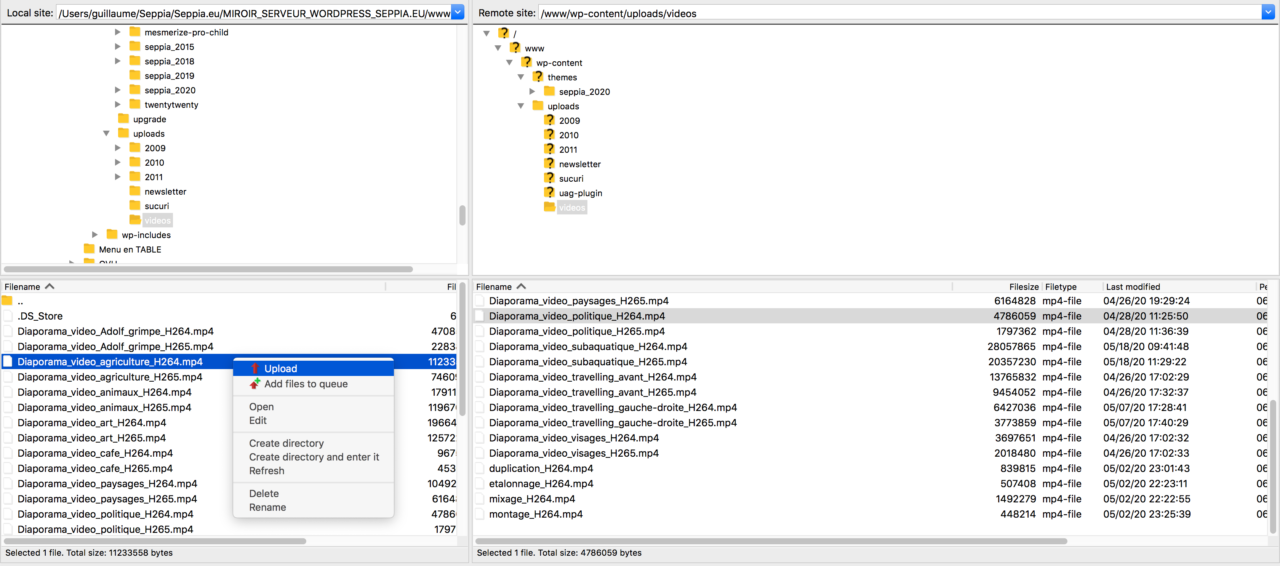
We recommend using a SFTP client software like Cyberduck or FileZilla.


Both are free and available for macOS and Windows, please make sure you update to the latest available version.
For security reasons, anonymous login is not authorized on our SFTP server. Your IP address will be banned from our server after a few unsuccessful connection attempts : wrong login or password, anonymous login.
You must use the Username and Password provided by Seppia
When transferring certain files, the transfer mode must be set to Binary, not ASCII, especially for the .XML files of the DCP.
Using Cyberduck
Upon your first connection, fill the following fields:
Protocol: SFTP
Server: serveur.seppia.eu
Port: 2221
Username: has been provided
Password: has been provided
Tick the “Add to Keychain” box to allow your computer to remember the password.
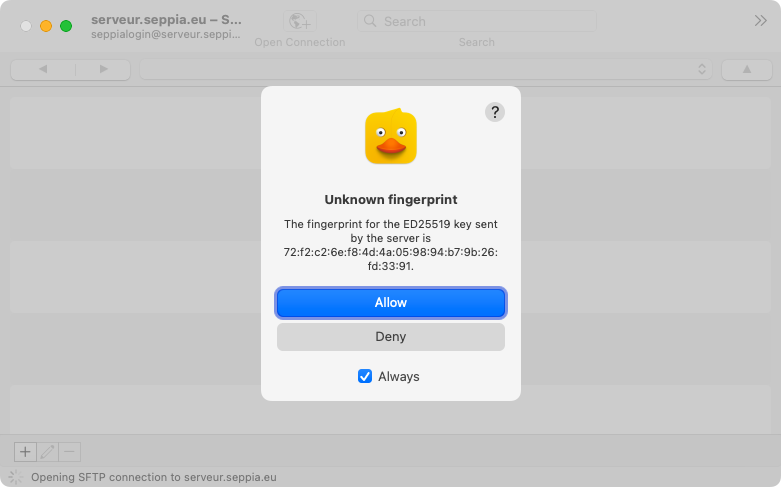
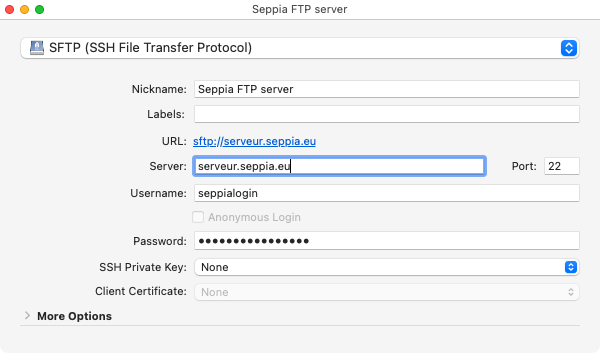
To simplify subsequent connections, we recommend creating a Bookmark:

To download a file from Seppia’s FTP server to your computer: right-click on a file and select “Download“:
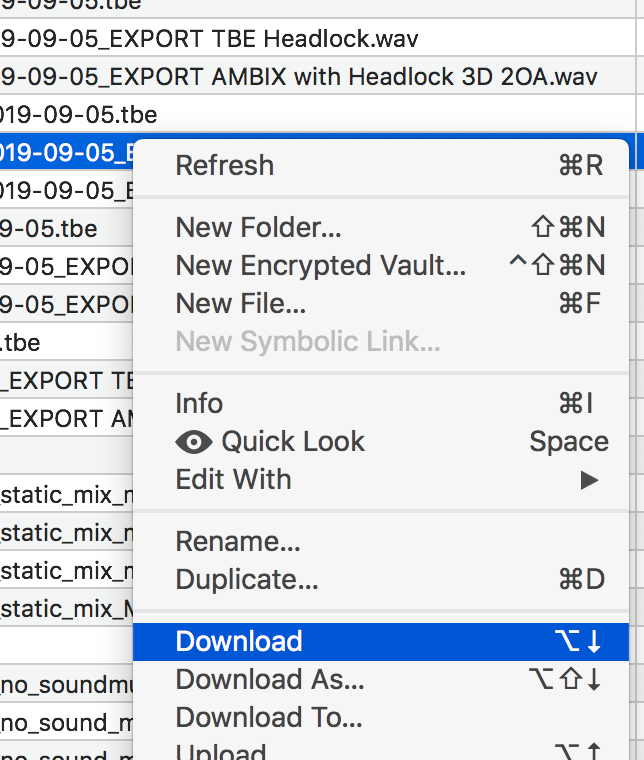
Select “Download As…” to change the local file name or location on your computer.
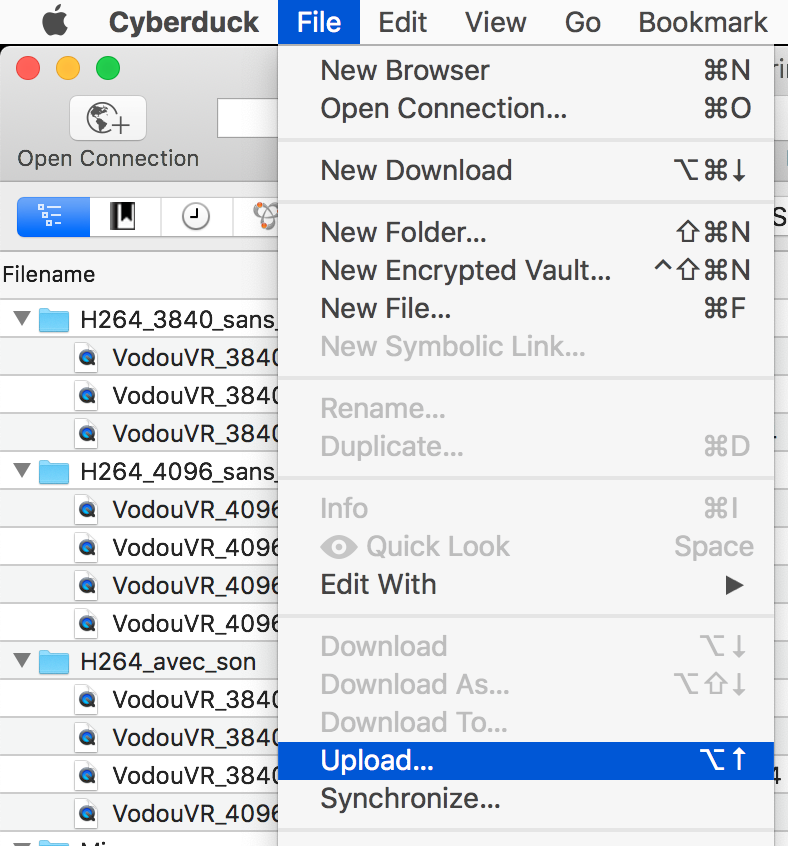
To upload a file from your computer to Seppia’s FTP server: go to the “File” menu and select “Upload…” to browse the local file(s) you want to send us:
Using Filezilla
Upon your first connection, fill the following fields:
Host : sftp://serveur.seppia.eu
Username: has been provided
Password: has been provided
Port : 2221
To simplify subsequent connections, we recommend creating a New site in FileZilla’s Site Manager:
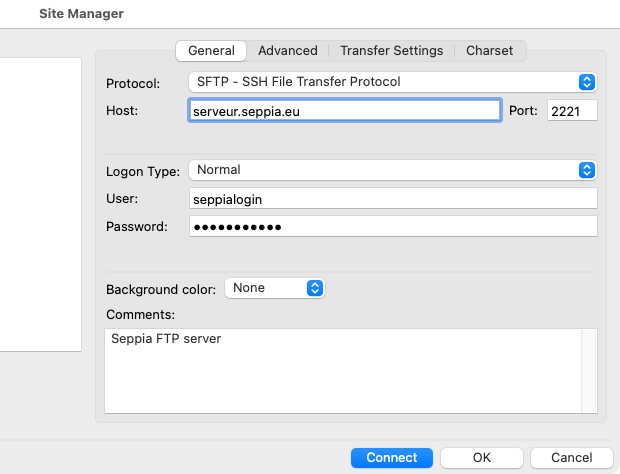
Make sure to use the following parameters:
– Protocol: SFTP
– Host: serveur.seppia.eu
– Port: 2221
– Logon Type: “Normal“
Fill in the Username and Password provided by Seppia in the proper fields.
To download a file from Seppia’s remote FTP server to your local computer: navigate into your computer’s local folder in the “Local site” tab, then right-click on the “Remote site” file and select “Download”:
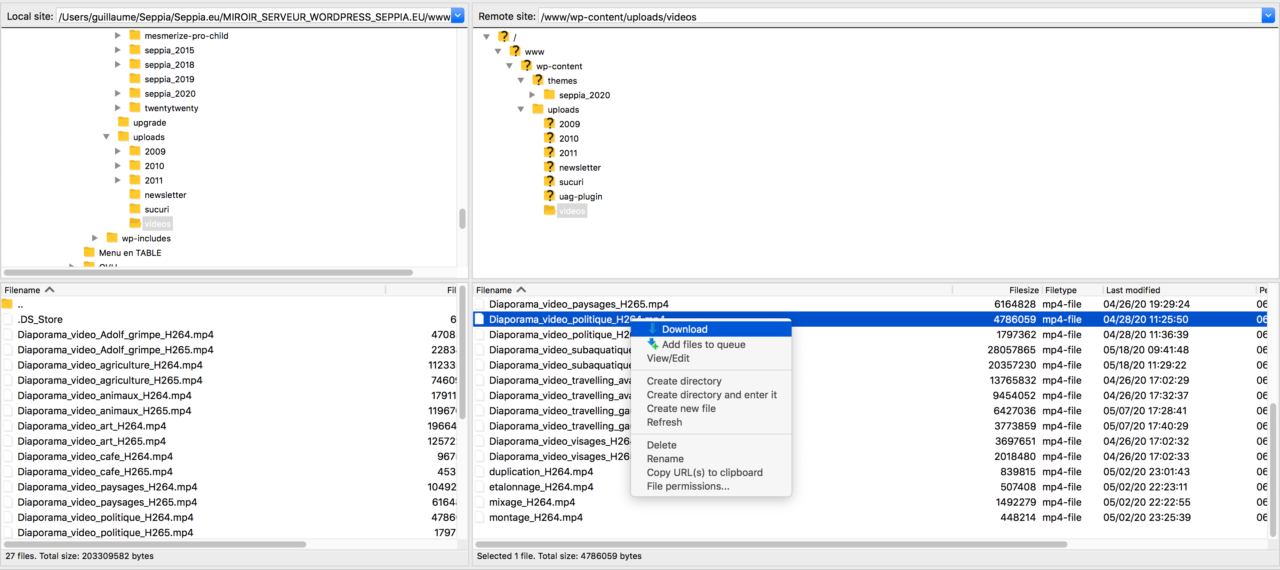
To upload a file from your local computer to Seppia’s remote FTP server: navigate into your computer’s local folder in the “Local site” tab, then right-click on the file and select “Upload”: